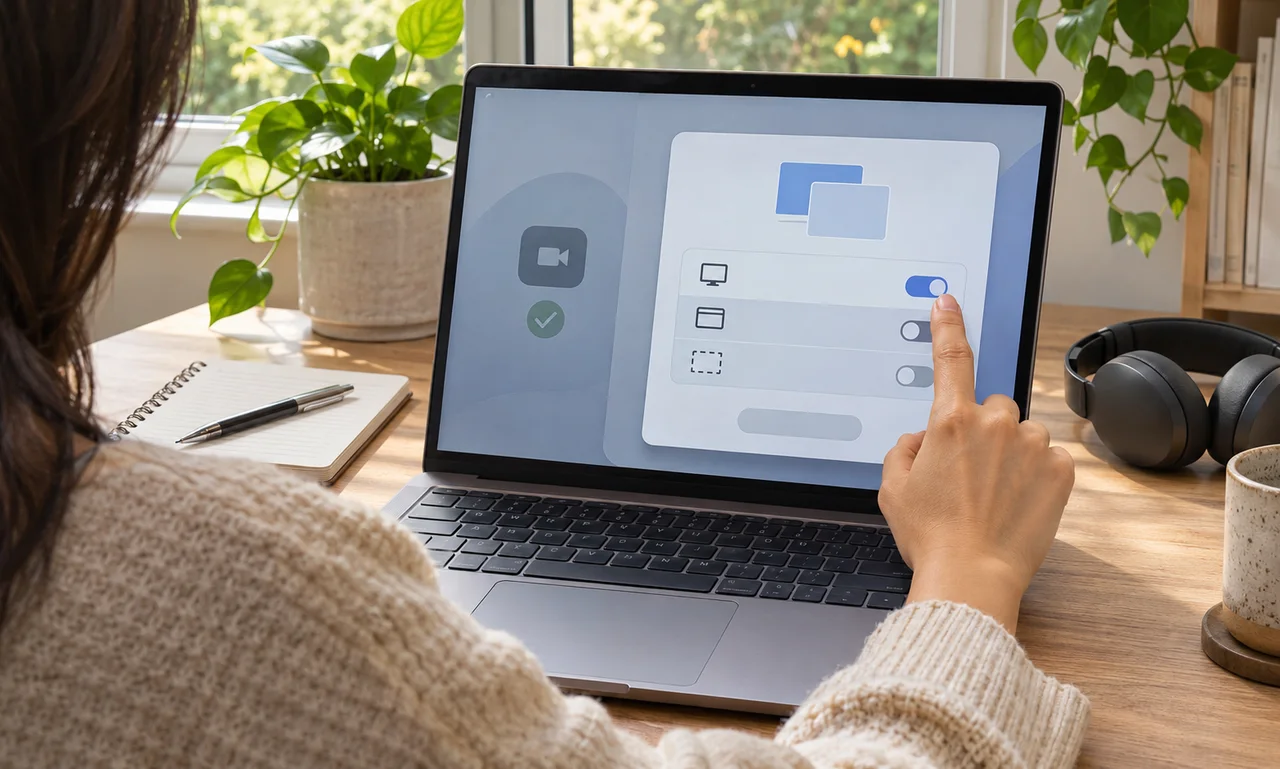
End the share before closing the window
Use the meeting service’s stop-sharing control and confirm that the shared-screen indicator has disappeared. Closing a presentation or browser tab is not always the same as ending the share itself.
Leave the meeting when the conversation is complete, then close the service if it is no longer needed. If the computer shows a system-level sharing indicator, check that it has also ended.
On a managed work or school device, follow the organization’s support guidance. Do not remove required software or change administrative settings without authorization.
Review the system permission
Open the computer’s privacy settings and find the area that controls screen recording or screen sharing. Names and locations vary by operating system, so use the current support instructions for the device.
If the meeting service does not need ongoing access, turn off the available permission. The system may require the service to close or the computer to restart before the change takes effect.
Removing permission does not erase a recording or a file already shared with other people. Review recordings, chat attachments and cloud storage separately when those copies need attention.
Choose the smallest view next time
When a future meeting offers a choice, share a single window or tab instead of the entire desktop when that narrower view serves the task. Close unrelated documents and notifications before beginning.
Pause before switching windows because the audience may see more than the presenter expects. A clear verbal note that sharing is about to start or stop also helps everyone follow the transition.
Screen sharing should feel like opening a temporary window, not granting a permanent view. End the session, close the permission and reopen it deliberately when the next meeting truly needs it.
About this article
An original everyday guide from Everyday News. It offers practical ideas and perspective rather than firsthand reporting.