Confirm what the app can currently see
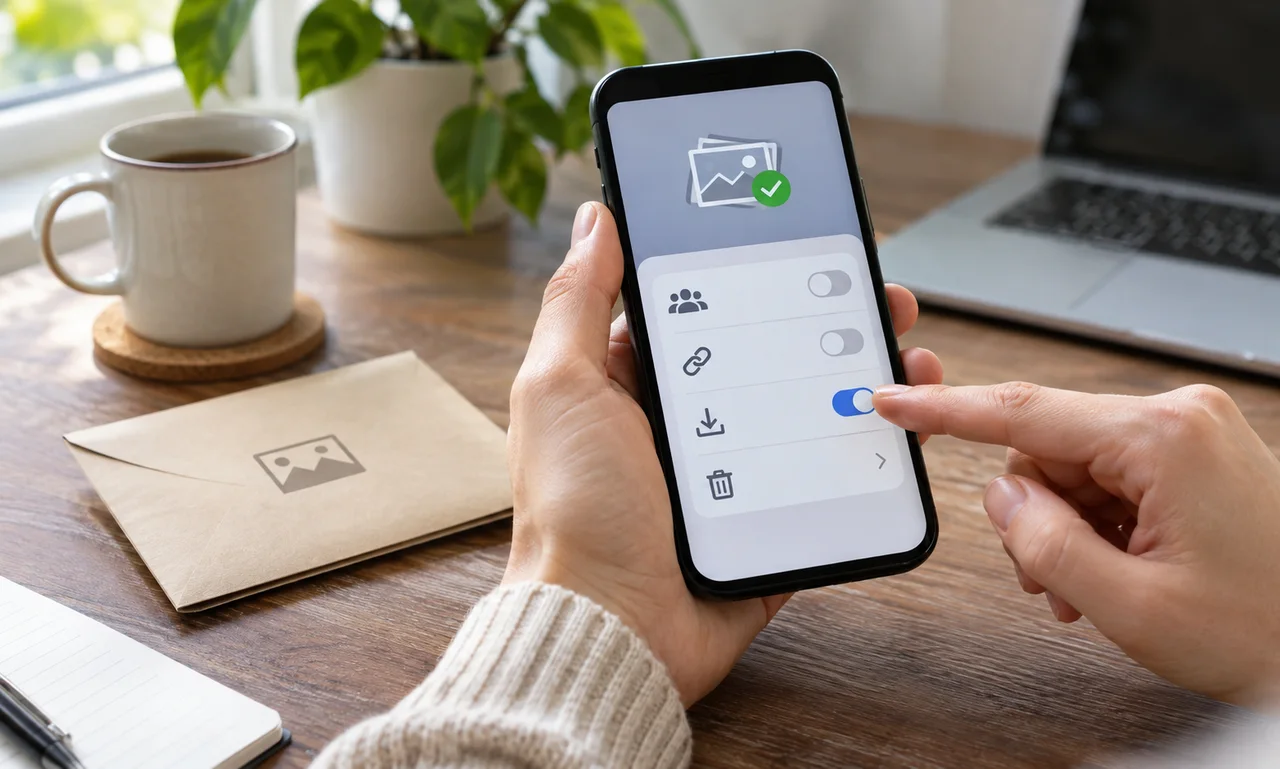
Open the phone’s privacy or app-permission settings and find the photo access granted to the service. Some systems distinguish selected photos from a full library, while others use broader controls.
Check that the upload, profile change or verification step has finished before altering access. Removing permission too early may interrupt a task that has not actually completed.
Managed work, school or family devices may follow an organization’s policy. Do not change required settings on an account or device you are not authorized to administer.
Reduce access to the purpose that remains
If the app no longer needs photos, choose the available option that removes library access. When future uploads are likely, a selected-photo or ask-each-time setting may provide a narrower alternative.
Changing permission does not delete images already uploaded to the service. Review the service’s account, post and storage controls separately when an online copy should also be removed or retained.
Do not treat every permission request as proof of wrongdoing. The practical question is whether the current level of access still matches a clear feature you use.
Check the next upload deliberately
Reopen the app only if needed and confirm that ordinary features still work. When a future upload asks for permission again, read the prompt and choose only the access required for that task.
Review other one-time tools used for scanning, printing, editing or event check-in. The same pattern can leave old permissions behind after the useful moment has passed.
A permission can be temporary even when the app remains installed. Closing that small doorway after the handoff keeps the phone easier to understand.
About this article
An original everyday guide from Everyday News. It offers practical ideas and perspective rather than firsthand reporting.